
This post will outline step by step how to remove the disabled class from a social icon making it appear ‘active’ on the Layers Meet The Team page.
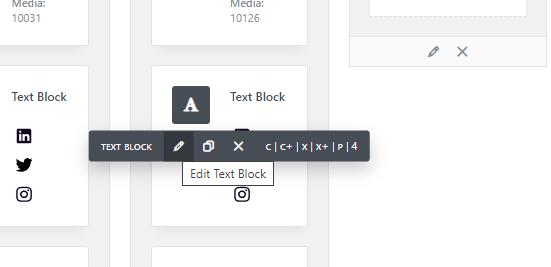
Step 1. Hover over the block where the icons are, and click on the pen icon.
Step 2. After you have clicked the pen icon you should see this box appear, where you will notice 2 tabs in the top right corner “visual” and “text”. Click on the text tab.
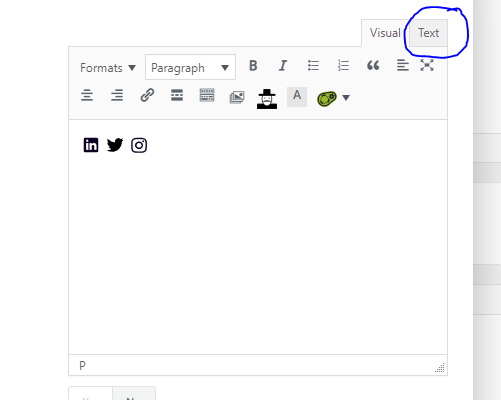
Step 3. Once you have clicked on the text tab you will see a lot of code as illustrated in the screenshot below. In this instance we are looking to remove the disabled class from the Instagram icon. To find the correct icon you can notice the href of the <a> tags. Inside this <a> tag you will also notice an <img> tag with a 2 classes set ‘team-social’ and ‘social-disabled’. We can simply just delete the ‘social-disabled’ class and then click ‘save changes’. Then finally update the page and view it to double check the icon now appears ‘active’.


